Difficulty: Easy · Tools: Grok Bot · Updated: 3 November 2026 · Who can read this: anyone
Overview
Sticky notes on the desk. A half-finished meeting dump in chat. Three side-project ideas in your phone. By Friday you cannot find the version that mattered — only another export sitting in last week's scroll.
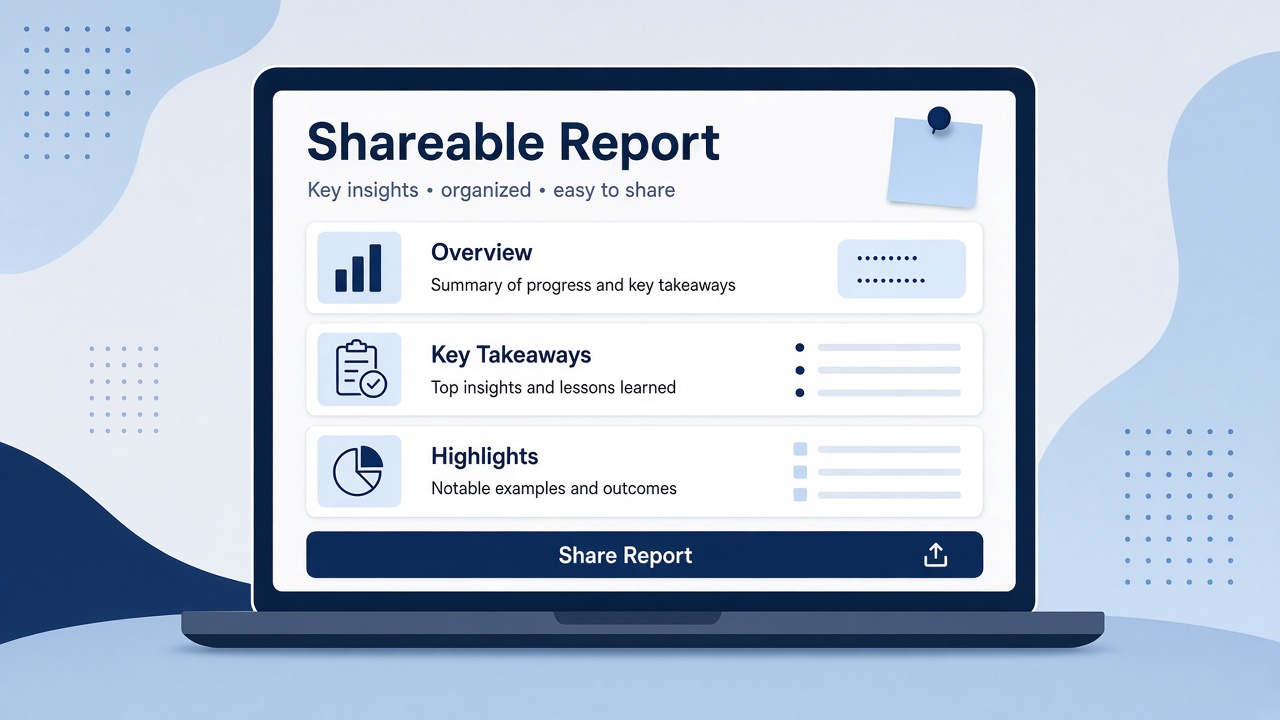
On 22 October 2026, Grok Bot shipped Pages (changelog v0.75.2). Bots can now build reports, memos, and dashboards you edit together, or that the Bot keeps up to date. Chat still gets a short link or card when a Page is created — the body lives on the Page, not only in the chat scroll. Canvases and documents are both labeled Page. Think of one shareable home for work that changes, instead of a new chat file each week.
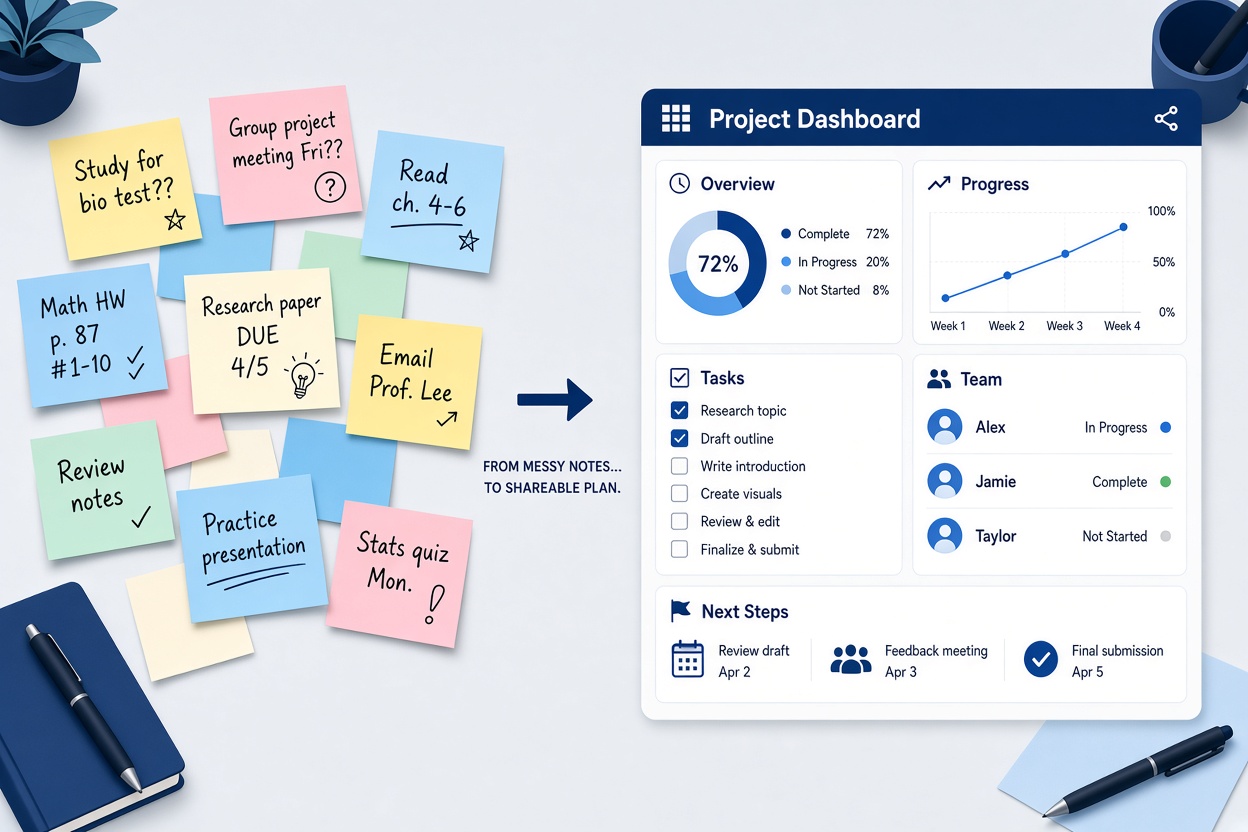
The honest goal tonight: paste tonight's scattered notes into any Bot, ask for one simple weekly plan or project memo as a Page, pin it in Library so it stays at the top across devices, then decide whether to keep it private, Download a PDF, or share a link. You leave with one living document — not another chat dump you will lose by Monday.
Who This Is Useful For
You already have Grok Bot (or can install it tonight). You are not a developer. You track a side project, a small team, a family plan, or your own week — and you are tired of hunting chats for "the latest version." You want one Page you can reopen, find text in with Cmd/Ctrl+F, pin, and optionally share. Not a dashboard empire tonight — one finished memo you can defend.
What You Will Learn
What You Need
Grok Bot on desktop, signed in, with any Bot you already chat with. About twelve minutes. No special plan beyond whatever lets you use Grok Bot today.
Have tonight's raw material ready: sticky-note photos typed out, a meeting dump, or five to fifteen lines of side-project ideas. Strip anything you would not show on a shared screen — passwords, salary figures, client IDs under NDA. If stripping leaves nothing useful, invent a harmless practice week (grocery plan, weekend trip outline) and run the same steps.
Optional: update Grok Bot before you start if you have not opened it since mid-October. Pages arrived in the 22 October 2026 update. An older install may not show them yet — Check for Updates is the fix, not a cleverer prompt.
Step 1 — Open any Bot and dump the mess (do not tidy first)
Open Grok Bot. Pick any Bot from the sidebar — the one you already talk to is fine. You do not need a new specialist for tonight.
Open a fresh chat (or continue an existing one if that Bot already knows your project). Paste your raw notes as-is. Do not rewrite them into pretty bullets yet. The point of Pages is that the Bot shapes the mess; you stay the editor of facts.
If your notes are on paper, type the bullets. If they are screenshots, paste or describe the text you are allowed to share. Keep names, dates, and numbers exactly as you wrote them — inventing polish now makes fact-checking harder later.
Expected result: One chat message that holds tonight's messy source — ugly is fine.
Pro tip: Put a one-line header at the top of your paste: "SOURCE — week of 3 Nov 2026 — do not invent dates." That fence saves you in Step 2.
Step 2 — Ask the Bot for one Page (weekly plan or project memo)
Send a clear ask. Pages are reports, memos, and dashboards the Bot builds so you can edit together. Tonight pick one shape only: a simple weekly plan, or a short project memo. Not both.
Paste this (edit the bracketed bits):
Turn my notes below into ONE Grok Bot Page — a simple weekly plan (or project memo).

Title: [Your project or "Week of 3 Nov 2026"]
Audience: just me tonight (I may share later)
Structure:
1) Goal for the week (2 sentences max)
2) Must-do list (5 bullets, each one concrete action)
3) Nice-to-have (3 bullets)
4) Blockers / open questions (bullets; write [NOT IN NOTES] if I did not say)
5) Friday check-in — three yes/no questions I should answer

Rules: Use ONLY my notes. Do not invent deadlines, people, or budgets. Keep the whole Page scannable in under two minutes. Create it as a Page I can open, rename, pin, and share later.
Then paste your notes under that prompt, or point the Bot at the message from Step 1.
Send once. Watch for a short link or card in chat — that is normal. The body lives on the Page. Open the Page from that card so you are editing the living document, not rereading chat scroll.
Expected result: A new Page open on screen, with a title and the five sections above filled only from your notes (or marked [NOT IN NOTES]).
Pro tip: If the Bot tries to answer only in chat without creating a Page, follow up with one line: "Create this as a Page, not a chat reply." Then open the card.
Step 3 — Read once, rename, and fix facts on the Page
Read the whole Page once without editing. Check three things: every name and date against your notes, any [NOT IN NOTES] gaps, and whether the must-do list is actually doable this week.
Rename from the Page title if the Bot picked something vague like "Untitled" or "Weekly Plan." Click the title and type the name you will recognize next Monday — for example "Launch checklist — week of 3 Nov." Owners rename from the title; you do not need a separate settings hunt for that.
Edit the Page together with the Bot if something is wrong. You can ask for several fixes in one message ("Move 'call vendor' to must-do; delete the invented Friday deadline; shorten the goal to two sentences"). Bots apply several Page edits at once, and leave the Page unchanged if any edit does not fit — so if nothing moved, say which line failed and try a smaller batch.
Use Cmd+F (Mac) or Ctrl+F (Windows) to find a name or date inside the open Page. Pages can capture the pointer and fill the screen when you want focus — useful when the sticky-note mess is still open beside you.
Expected result: A Page whose title you chose, whose facts match your notes, and that you can scan in under two minutes.
Pro tip: One invented deadline is enough reason to discard a section. Tell the Bot which line to delete. Fluent prose is not a source.
Step 4 — Pin it in Library so Monday-you can find it
Open Library. Find the Page you just made. Hover the row for a preview: who sent it, when, and who can see the Page. That hover check is how you confirm you are pinning the right thing — not last month's memo with a similar name.
Pin the Page to the Pinned section. Pinned Library pages, files, and links stay at the top and sync across devices. That is the whole point of tonight: one home that does not drown in chat Recents.
Reopen the Page from Pinned once to prove the path. Close chat if you want — the body is on the Page. Next time you sit down, start from Pinned, not from searching last week's thread.
Expected result: Your Page sits in Pinned at the top of Library, reopenable without scrolling chat history.
Pro tip: Pin only what you will reopen this month. A crowded Pinned section becomes another mess. Unpin last week's plan when Friday's check-in is done.
Step 5 — Share, Download PDF, or keep it private (owner choice)
You are done when the Page is pinned and accurate. Sharing is optional.
If you keep it private, stop here. Tonight's win already happened.
If you want a PDF for email or print: as owner, use Download (PDF) from the shared Page title bar. Visitors who open a shared link may see Try Grok Bot; owners see Share. Download is for you when you need a frozen snapshot — the living Page can still change afterward.
If you share with people: Page owners can share with a whole organization or another team (Teams). Share only after the strip-and-read pass. The Dashboard Pages section lists Pages you have shared; from there you can unshare or delete them when the week is over.
Deleting a Page from Library removes it for everyone it was shared with. That is permanent for that Page — do not delete to "clean up" if someone else still needs the link. Unshare first when you only want to pull access.
Expected result: Either a private pinned Page, a PDF in your downloads, or a shared Page you can later unshare from Dashboard Pages — your choice, made on purpose.
Pro tip: For a first share, pick one teammate or one team — not the whole organization. Widen access after someone else confirms the facts.
Common Mistakes to Avoid
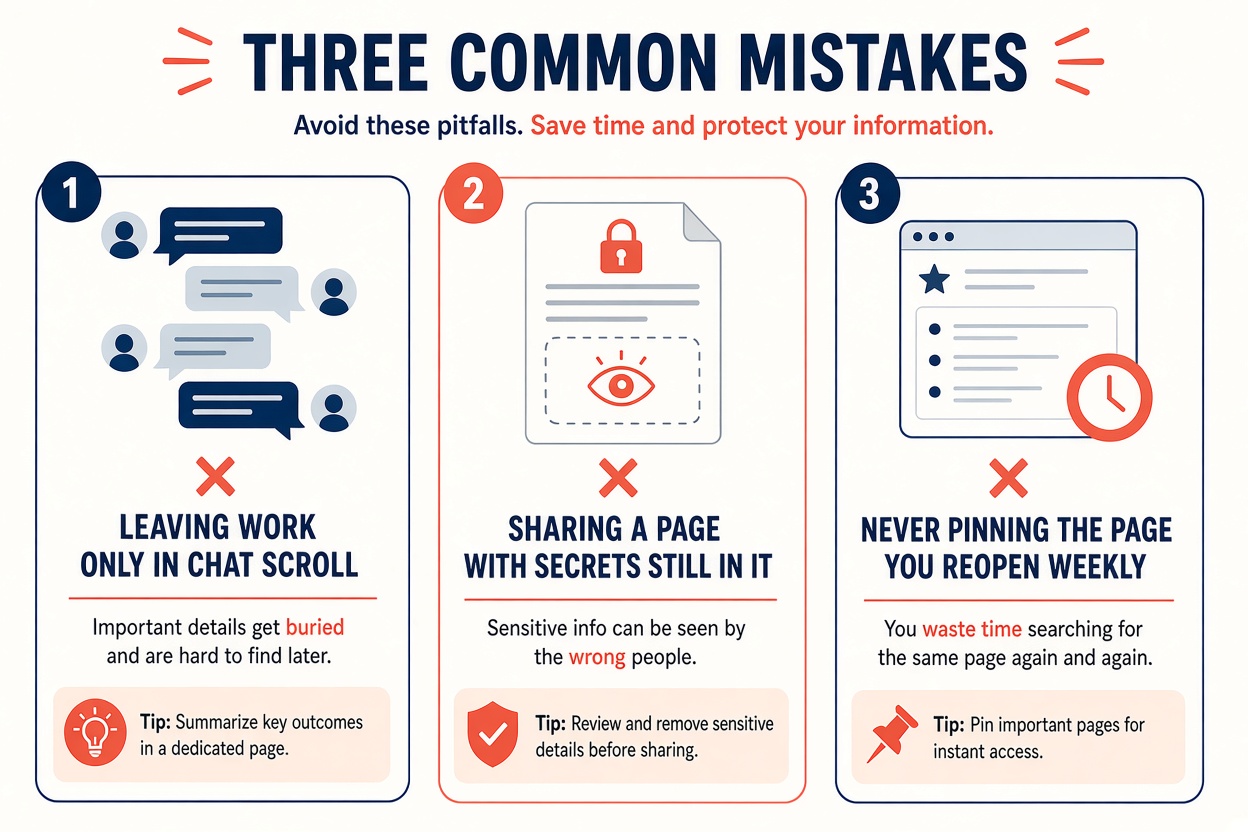
Treating the chat card as the document. The card is a doorway. The body lives on the Page. Pin and edit the Page. If you keep pasting "final" versions into chat, you will lose Monday's edits by Friday.
Skipping the strip before you share. Pages can go to a team or your whole organization. Passwords and salary lines do not belong in a memo you might widen later. Strip in Step 1; share in Step 5.
Asking for five Page types in one prompt. Tonight is one weekly plan or one project memo. Extra dashboards dilute the must-do list. Create a second Page next week if you still need it.
Ignoring a no-op edit batch. If the Bot applies several edits at once and nothing changed, at least one edit did not fit — the Page stays as it was. Shrink the ask. Name the exact heading or bullet.
Deleting from Library to "hide" a share. Delete removes the Page for everyone shared with. Unshare from Dashboard Pages when you only want to pull access. Delete when the work is truly finished.
Going Further
Ask your Bot, in one sentence, to keep this Page updated when you drop new notes each Sunday — a light routine ask, not a promise of magic. You still read once before anything goes to a teammate.
On another night, turn the Friday check-in answers into next week's must-do list on the same Page. Rename the title with the new week. Pin stays; chat scroll does not matter. If you work with Teams, share with one team first and check the Library hover preview for who can see it before any sensitive follow-up edit.
Key Takeaways
[NOT IN NOTES] fence. Discard invented deadlines. Several edits apply at once — or leave the Page unchanged if any edit does not fit.Tonight's checklist
Grok and related products from xAI — start here if you need the public product home before opening the Grok Bot desktop app.
Sources: